
About Teedia
Teedia is the AI-native talent management platform, built in France for mid-size and large companies. Appraisals, objectives and OKRs, skills, training, talent reviews, internal mobility and engagement surveys come together in one place, with AI that connects them to help HR teams make better decisions. Teedia's databases are hosted in France.
The Teamtailor integration is developed, maintained and supported by Teedia. For any question, contact Teedia support at support@teedia.fr.
How the integration works
- A Teamtailor admin places the Teedia trigger on a stage of the hiring pipeline, usually Hired.
- When a candidate reaches that stage, Teamtailor sends the candidate to Teedia.
- Teedia creates the candidate as an active employee, or links them to the existing employee with the same work email. A candidate sent several times never creates a duplicate.
- Teedia posts the result on the candidate in Teamtailor: Completed, or Failed with the reason.
Every request is signed by Teamtailor and carries the company's encrypted Teedia connection key. Teedia checks both before writing any data.
Requirements
- A Teedia subscription that includes connectors, and a Teedia user with access to the Admin space.
- A Teamtailor user with the Company admin role.
How to enable the integration
Step 1: get the Teedia connection key (in Teedia)
- In Teedia, open the Admin space, then Settings > Connectors.
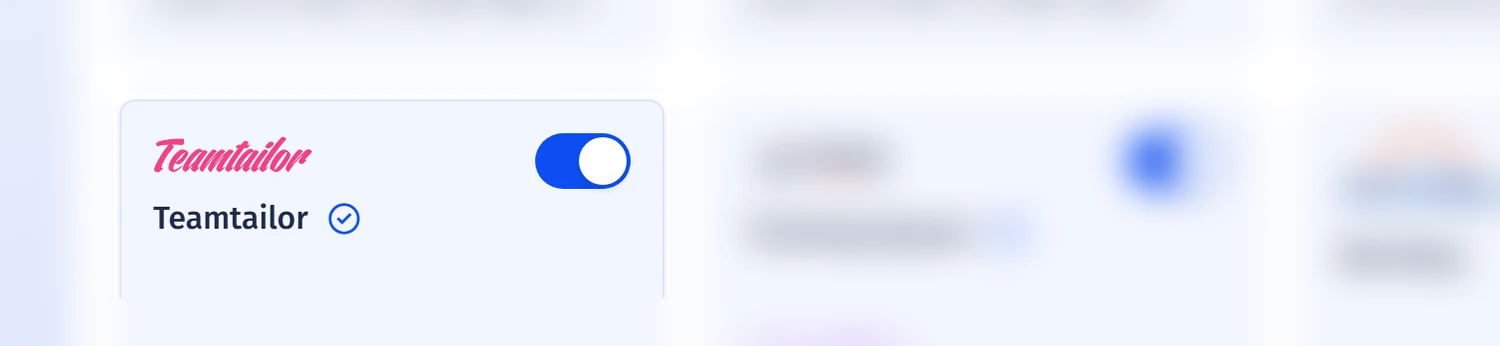
- Search for Teamtailor and open its card.
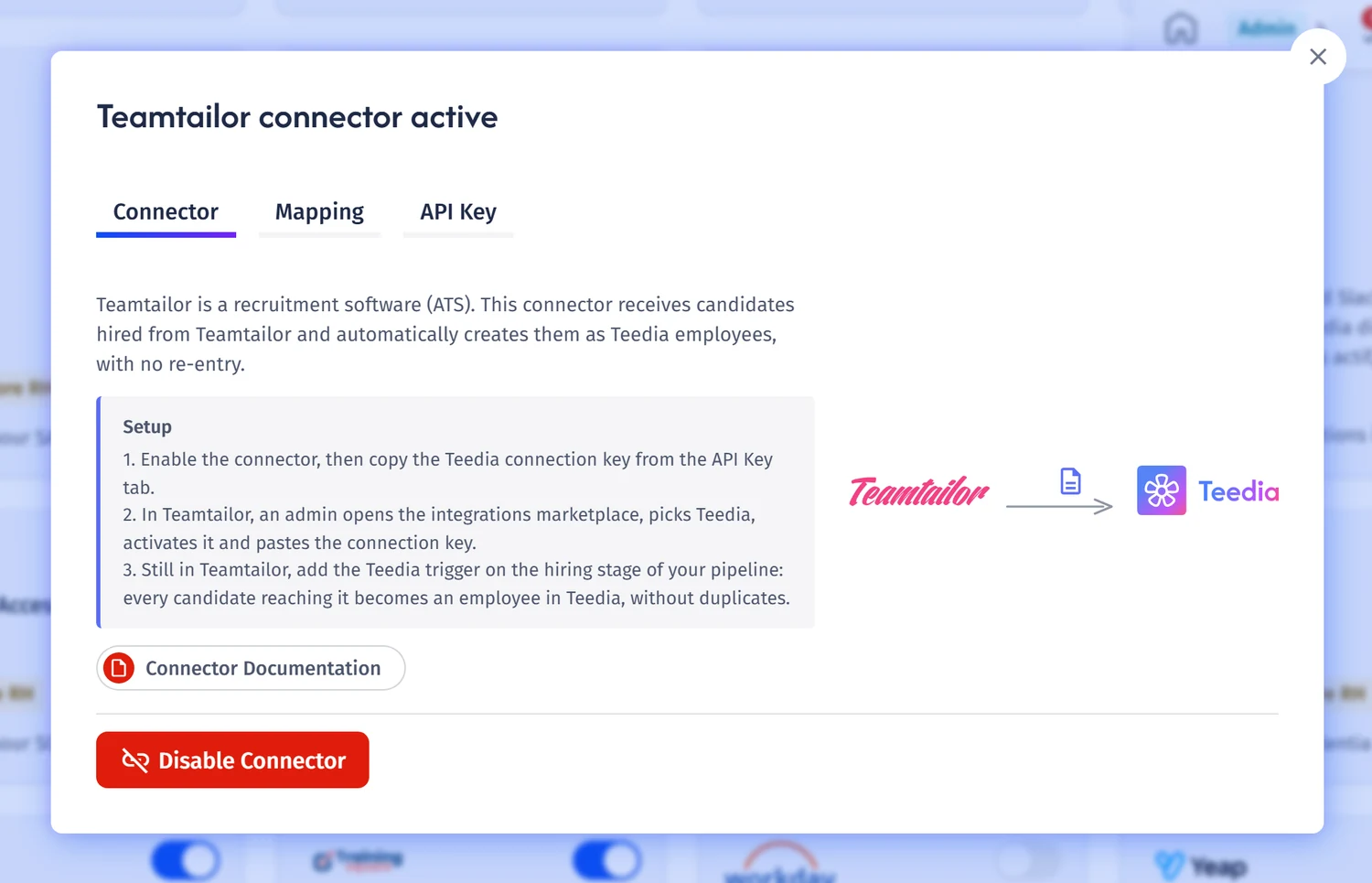
- Click Enable and generate a connection key. The window then shows three tabs: Connector, Mapping and API Key.
- In the API Key tab, click Copy to copy the Teedia connection key.
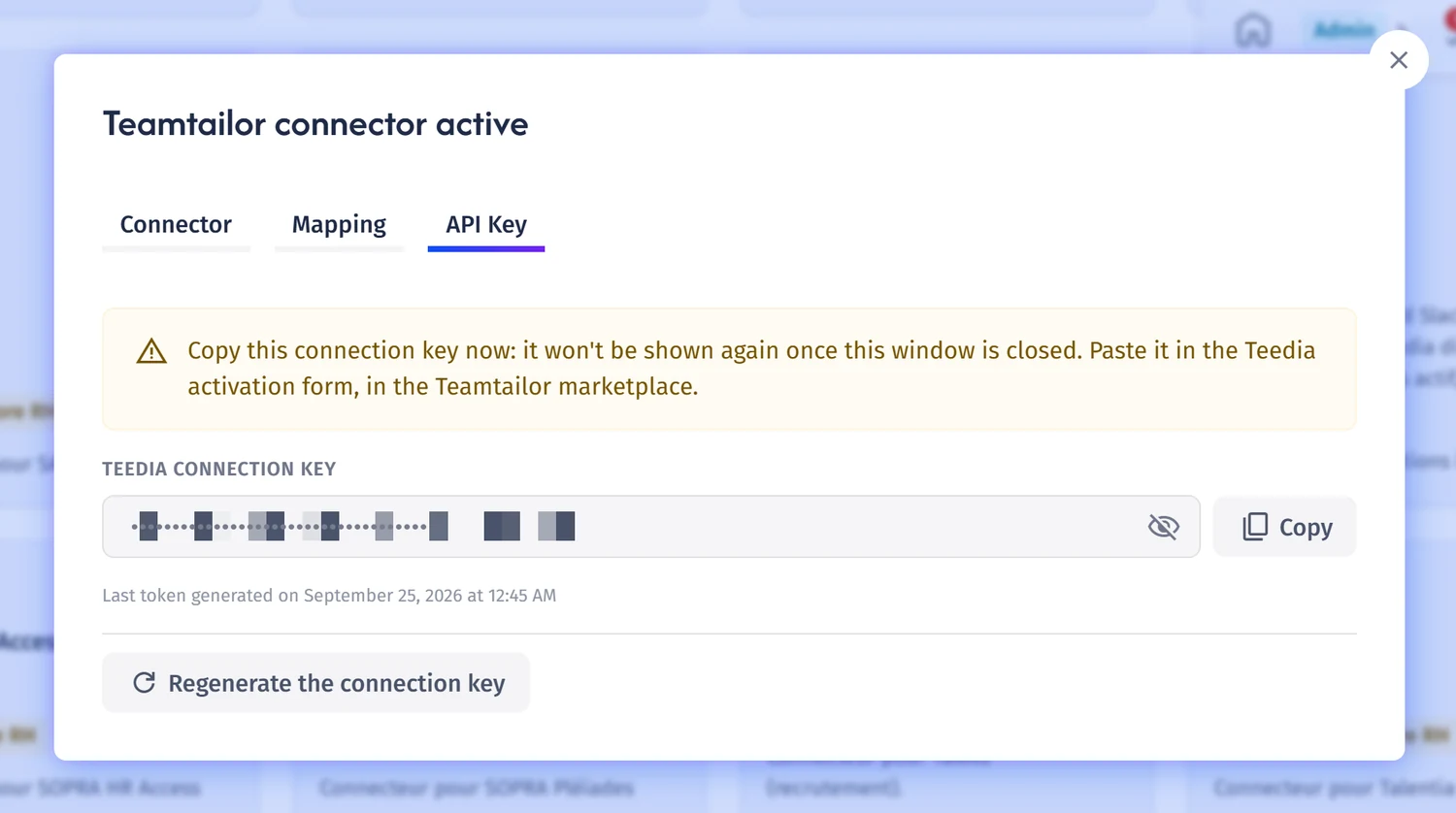
The key is shown only once. If it is lost, click Regenerate the connection key, then update the key in the Teedia activation in Teamtailor (edit the activation, paste the new key, click Update). The previous key stops working immediately.
Step 2: activate Teedia in Teamtailor
- In Teamtailor, open the Marketplace (also reachable from Settings > Integrations > Marketplace activations) and search for Teedia.
- Click Activate.
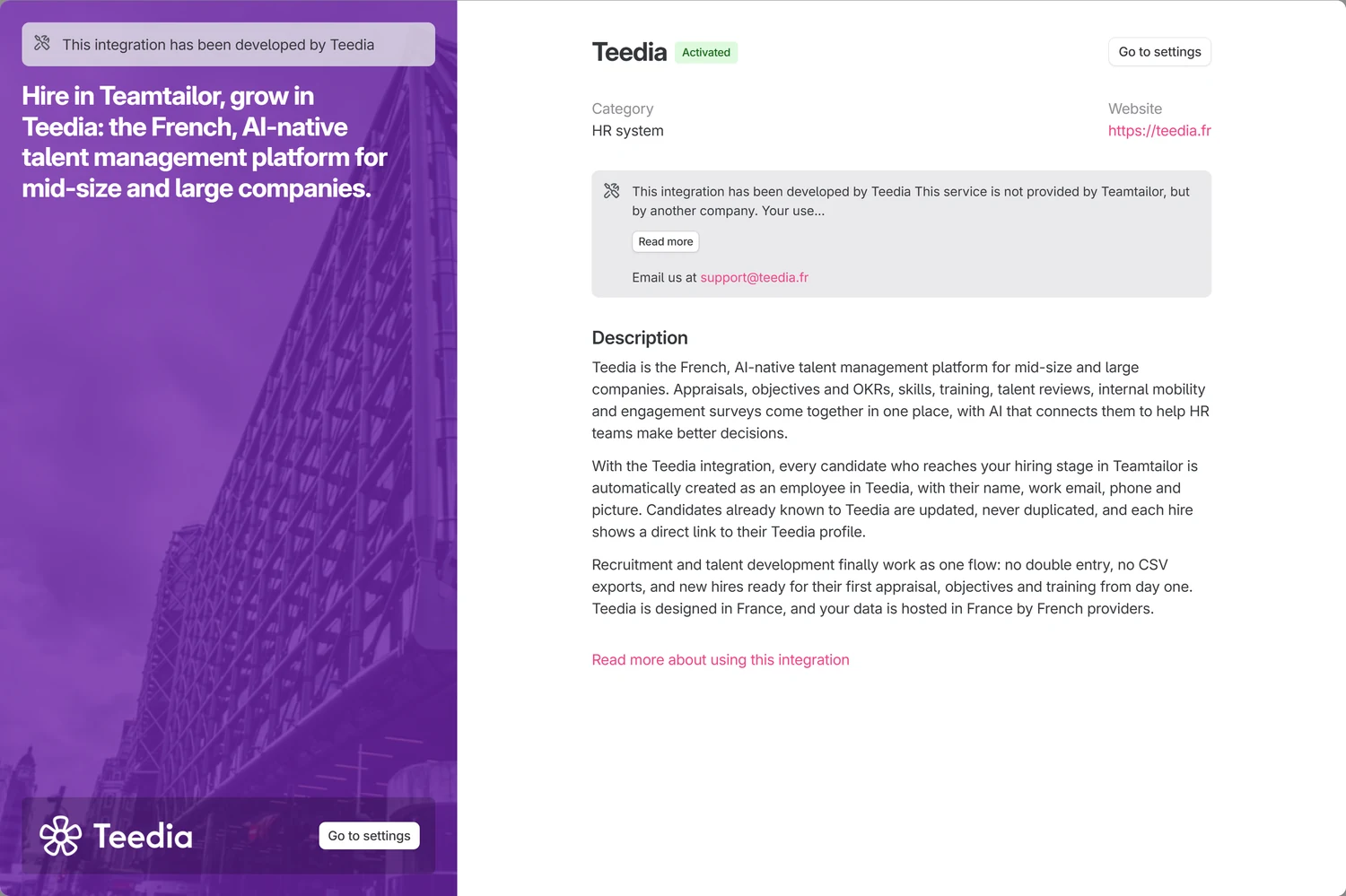
- Paste the key in the Teedia connection key field and click Activate.
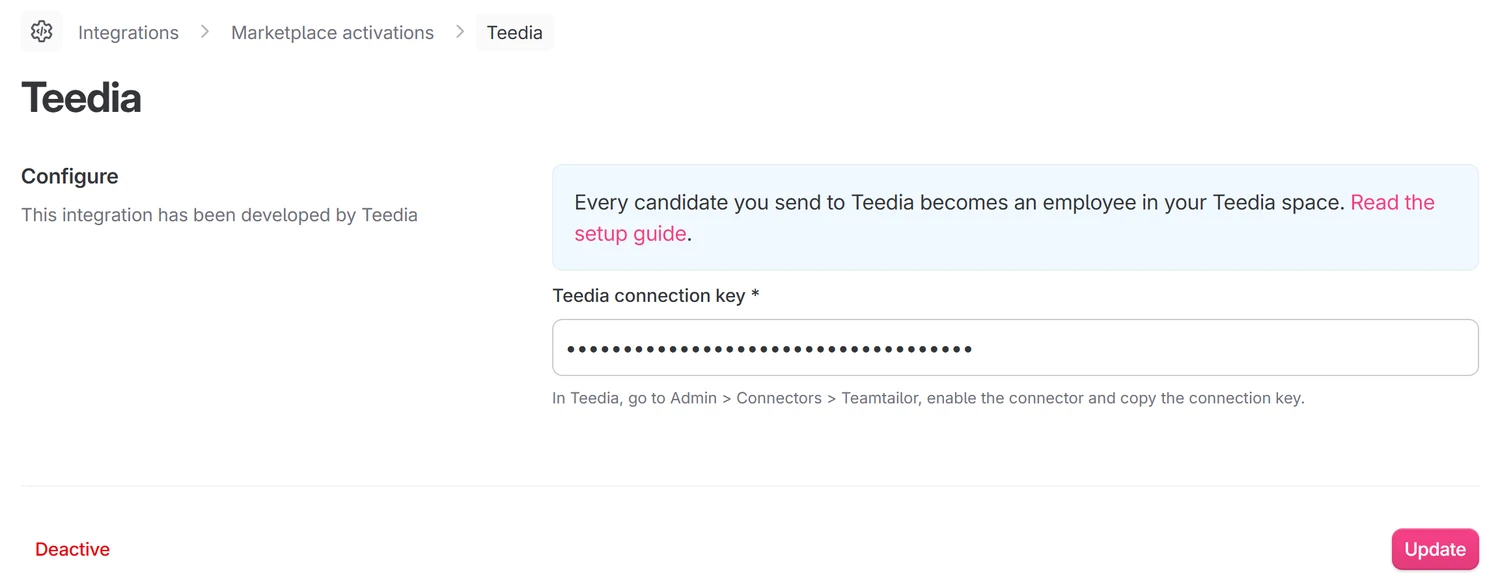
Teamtailor asks Teedia to validate the key before saving the activation. If the key is not recognized, the message Unknown Teedia connection key is shown: copy the key again from Teedia.
Step 3: add the Teedia trigger on the hiring stage
- Open a job (or a job template), stay on Applications and click the triggers icon (lightning bolt) above the stages.
- On the stage where new hires land, usually Hired, click Add trigger, then choose Create Teedia employee in the Integrations section.
- If jobs use different pipelines, repeat on the hiring stage of each pipeline.
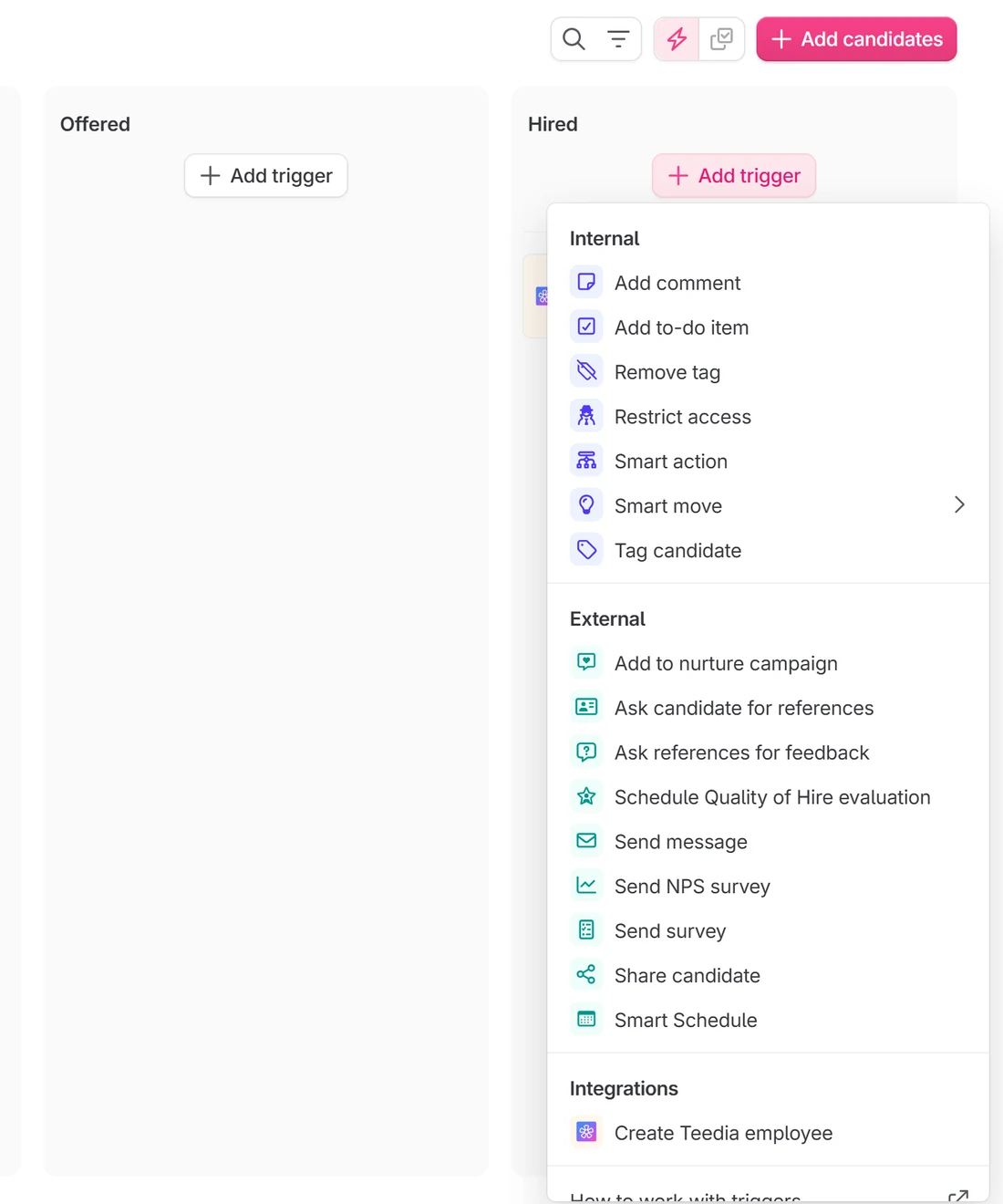
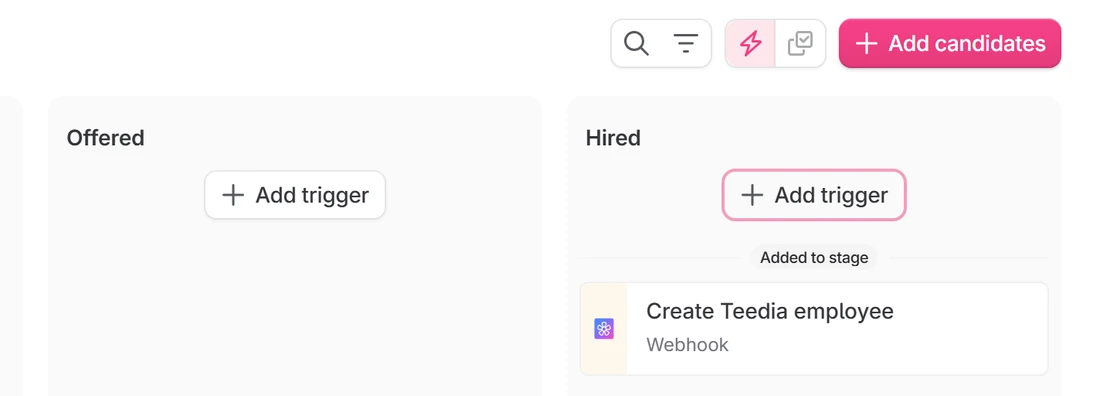
Teedia creates an employee for every candidate who reaches the stage: do not place the trigger on a stage before the hiring decision.
Step 4: check the result
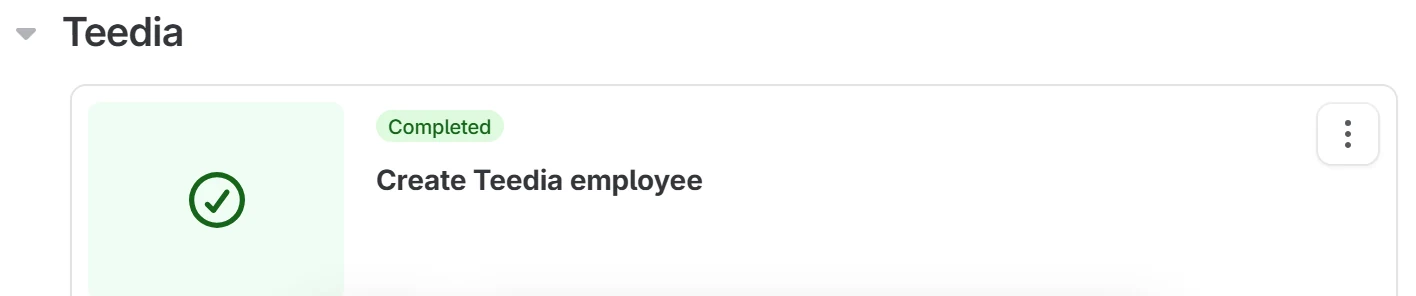
Move a test candidate to the stage. A few seconds later, the Teedia card on the candidate shows Completed and the activity feed shows Candidate has a new result: the employee is now in Teedia. If something went wrong, the card shows Failed with the reason and a Try again button.

Integration details
Data direction
The integration is one-way, from Teamtailor to Teedia. The only data Teedia sends back to Teamtailor is the result shown on the candidate: a status (Completed or Failed) with a short message. Teedia does not change any other data in Teamtailor.
Fields sent from Teamtailor to Teedia
| Teamtailor | Teedia | Notes |
|---|---|---|
| Candidate ID | External ID | Prevents duplicates |
| First name | First name | Required |
| Last name | Last name | Required |
| Work email | Required; matching is case-insensitive | |
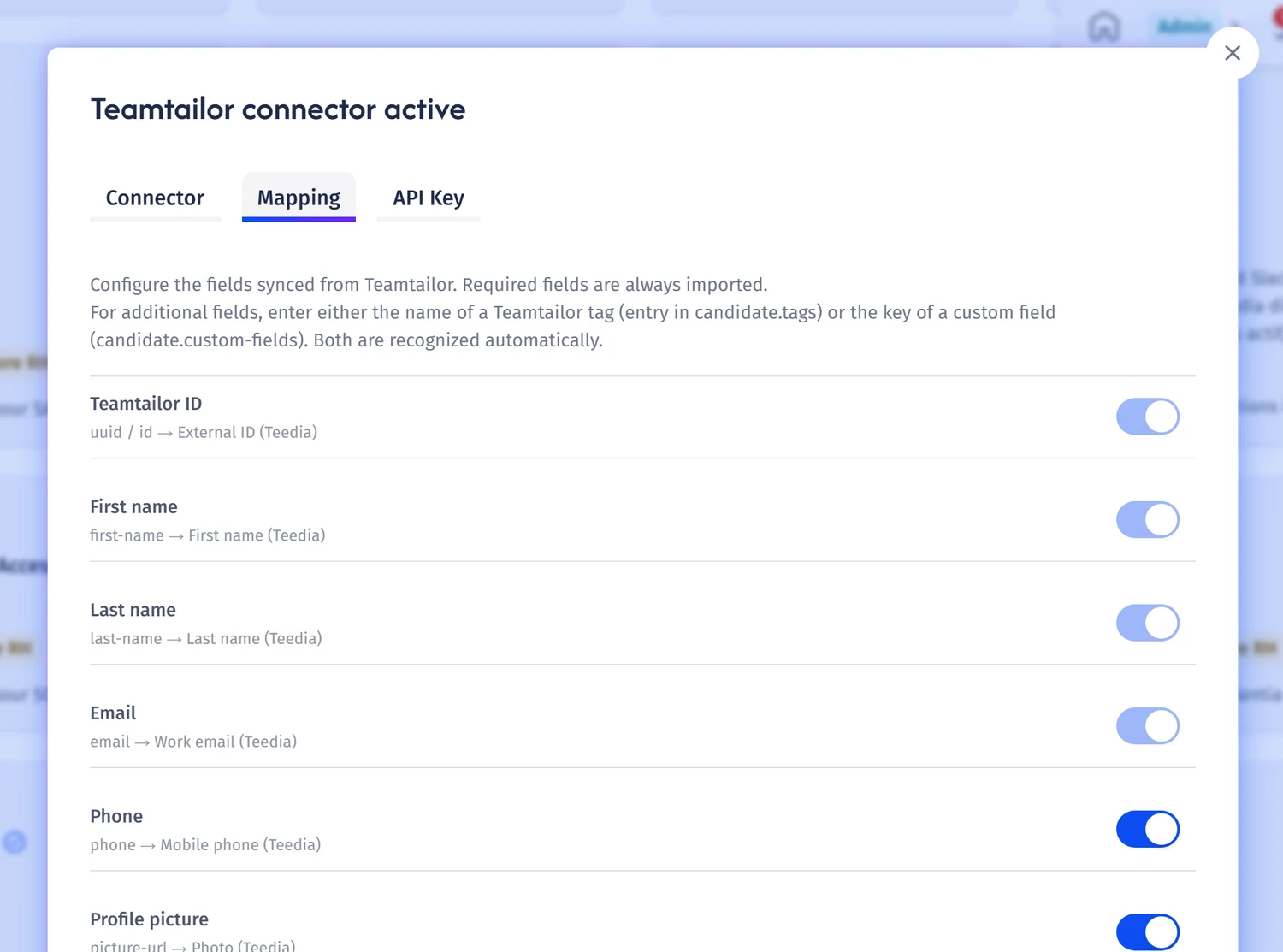
| Phone | Mobile phone | Optional, can be turned off |
| Picture | Profile photo | Optional, can be turned off |
Tags, custom fields, other candidate data (for example job.title) | Teedia fields chosen by the admin | Additional mappings |
Optional fields and additional mappings are set in the Mapping tab of the connector in Teedia. On an existing employee, only these fields are updated.
What happens when a candidate is sent
| Situation | Result in Teedia | Status in Teamtailor |
|---|---|---|
| New candidate | Employee created | Completed |
| Employee with the same work email | Linked and updated | Completed |
| Candidate already sent | Employee updated, no duplicate | Completed |
| Candidate rejected for the job | Nothing created | Completed |
| Missing data or unknown connection key | Nothing created | Failed, with the reason |
Start date, contract and job position are not created by the integration: they are managed in Teedia's core HR data.
Support
Teedia support: support@teedia.fr (English or French). Include the company name, the candidate's name and the time of the attempt. Never send the connection key by email.
FAQ
- Can the trigger be placed on another stage?
- Yes. Teedia acts on the stage where the trigger is placed. The Hired stage is recommended.
- What if the candidate is moved to the stage twice?
- Teedia recognizes the candidate and updates the existing employee: no duplicate is created.
- What if the person already exists in Teedia?
- Teedia links the candidate to the employee with the same work email and updates the synced fields.
- How to send a candidate again after an error?
- Fix the cause shown on the Teedia card, then click Try again on the card.
- How to disconnect the integration?
- Deactivate Teedia in the Teamtailor marketplace, then click Disable Connector in Teedia. Employees already created are kept.
Common errors
| Message in Teamtailor | Cause and fix |
|---|---|
| Unknown Teedia connection key | The key was mistyped or regenerated in Teedia. Copy the current key from Teedia, then in Teamtailor open Settings > Integrations > Marketplace activations > Teedia, paste it and click Update. Then click Try again on the candidate. |
| Candidate incomplete or missing fields | First name, last name and email are required. Complete the candidate, then move them to the stage again. |
| Teedia is not open yet for this company | The company's Teedia environment is still being set up: nothing is created until it opens. Contact Teedia support. |
| Trigger failed or Invalid Teamtailor signature | Contact Teedia support with the candidate's name and the time of the attempt: Teedia logs the cause of every rejected request. |